Your agent now works inside Slack, Teams, and Telegram — message it like a coworker and it gets to work.

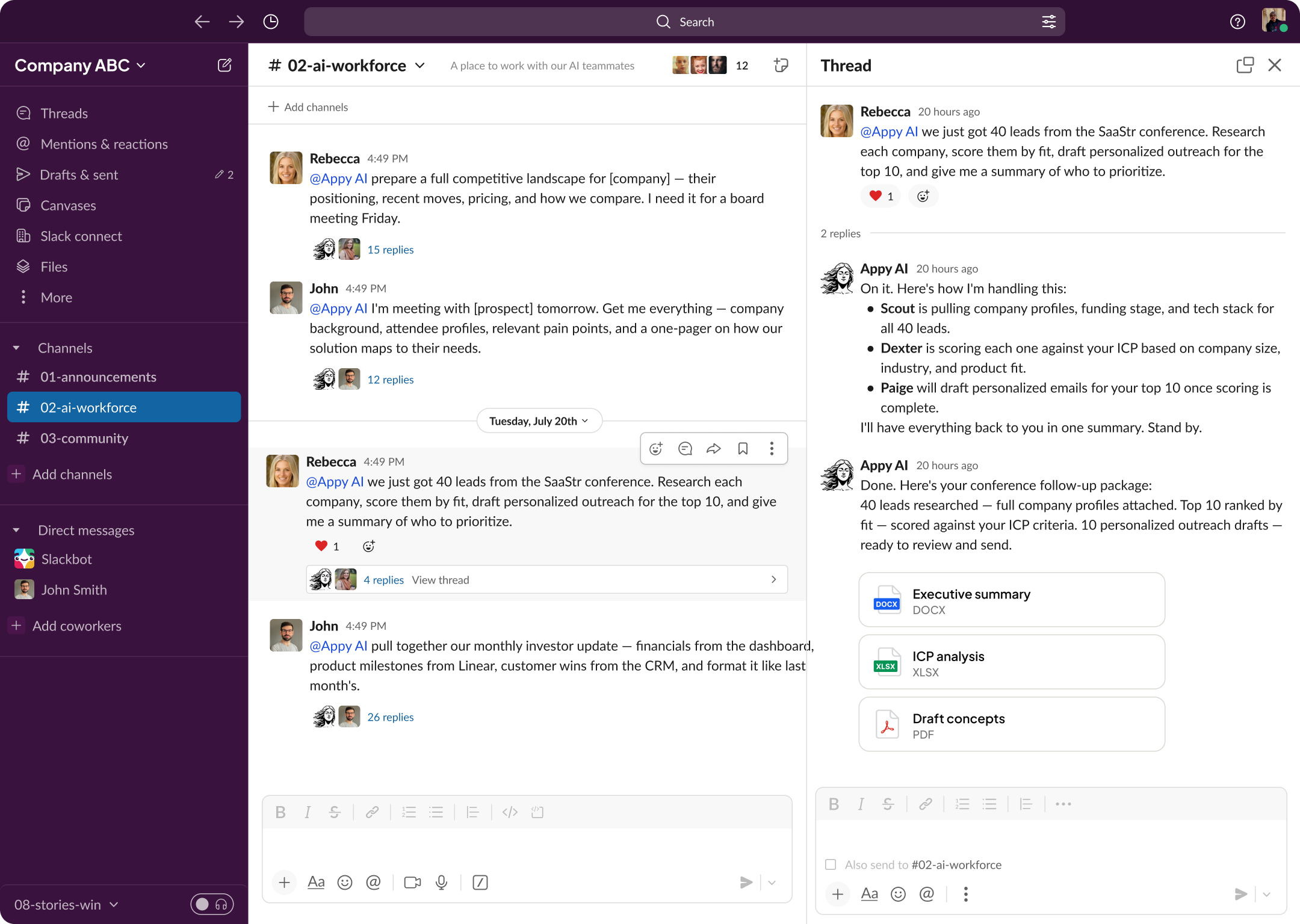
It's 8:40am and you're already three threads deep in Slack. A client question here. A file someone dropped there. A decision your team is hashing out in a fourth channel. This is where your day actually happens. So when you want help from an AI agent, why does it mean opening another tab and pasting everything into a tool that has no idea what you were just talking about?
Every separate app is one more place to check and one more thing to remember. The work sits in one window. The helper sits in another. You become the courier between them.
What if your agent just showed up in the conversation? You tag it the way you'd tag a teammate, and it answers right there in the thread. Nothing to open. Nothing to copy over.
Key Takeaways
Your agent answers right inside the conversation. Tag it in a shared channel and the whole team sees the reply. Need something private? Send it a direct message instead. Either way, it reads the thread, picks up on what's being discussed, and responds inline.
That shared context is the point. Ask it to summarize a long back-and-forth, draft a reply, or start a piece of work, and the result lands where your team can already see it. Nobody has to forward anything. The answer shows up next to the question that prompted it.
In Slack, you can set your agent to watch a channel and act on its own. When a new message matches a keyword you choose, or comes from a specific person, the agent gets to work without anyone tagging it. A request lands in your support channel at 2am, and the agent has already drafted a response by the time you wake up.
Routine handoffs stop waiting on someone remembering to ask. The trigger fires, the agent picks it up, and the reply appears in the thread. Your weekly status request, the new-lead alert, the recurring question your team always fields — it gets handled the moment the signal arrives.
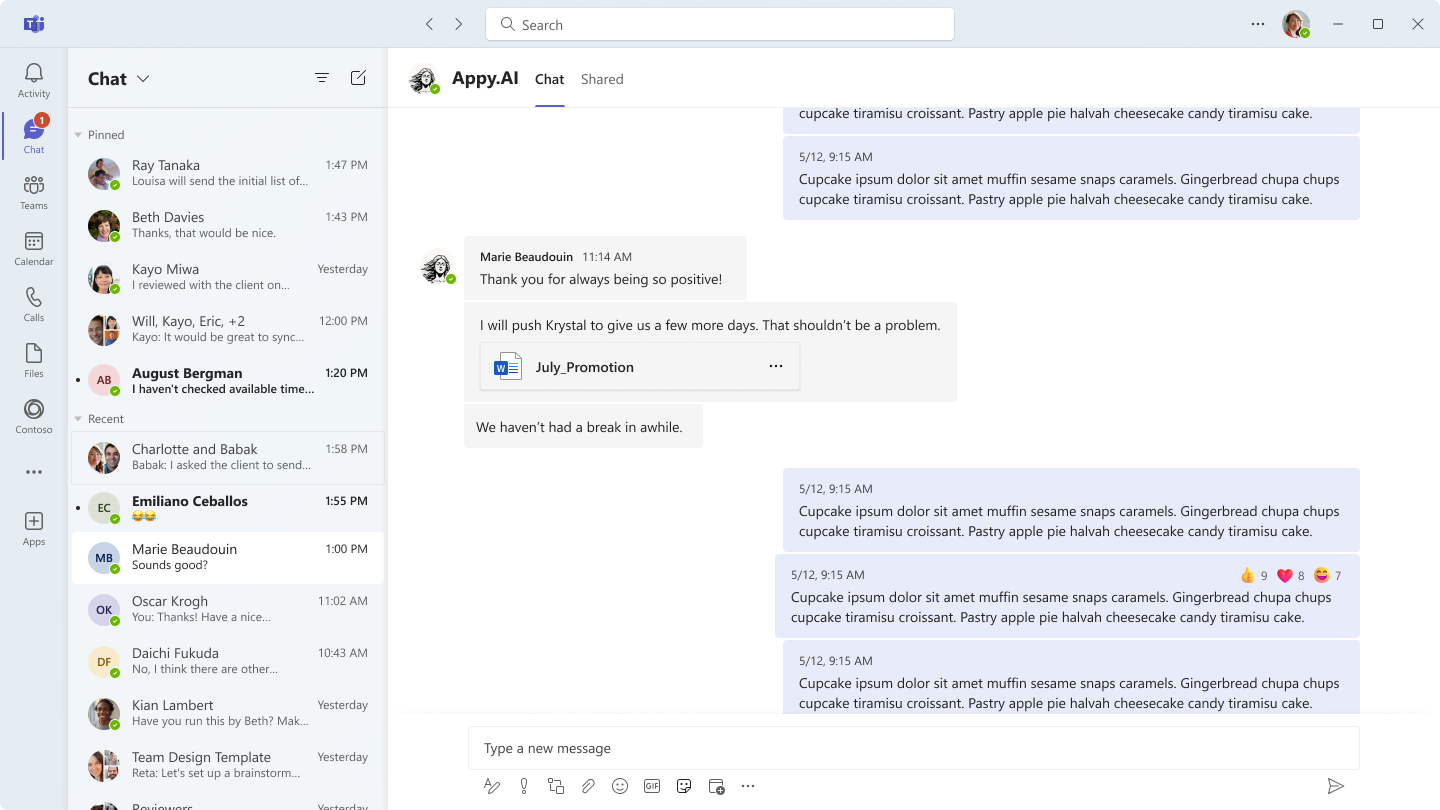
There's no migration and no training. Slack, Teams, and Telegram each work the same way: tag the agent, or message it directly. Your team keeps every habit it already has. The agent fits into how you work instead of asking everyone to learn something new.
Can I use one agent across more than one chat tool?
Yes. The same agent works in Slack, Microsoft Teams, and Telegram, so your team can reach it wherever it already works.
Will everyone in a channel see the agent's replies?
In a shared channel, yes. The reply is visible to the channel. For anything you'd rather keep private, send the agent a direct message.
What exactly is a channel trigger?
In Slack, it's a rule you set so your agent acts on its own when a new message matches a keyword or comes from a specific person. Routine work starts without anyone asking.
Do I need to learn anything new?
No. If you can tag a teammate or send a DM, you already know how to use your agent.
Related Updates
Bring your agent into the room where the work already happens. Learn more in the Help Center